Events
Add an event
Add a one-off or recurring event, link venues and acts, and send visitors to your own ticket or payment provider.
Part 1
Post once, seen everywhere
Part 1
Post once, seen everywhere
An event on your page also appears in the town feed, on interest pages and in the weekly town email.
- 1One-off or recurringChoose a single date or a repeating schedule like every Friday.
- 2Add from a link or posterAdd the details in your Events tab, or start with a photo of your poster.
- 3Give it a clear nameLead with what's happening — "Live Music with Monroe Band" — the venue already shows underneath.
Part 2
Every event has a real place
Part 2
Every event has a real place
Each event carries a real address and map pin, so visitors get directions in one tap.
Part 3
One event, both pages
Part 3
One event, both pages
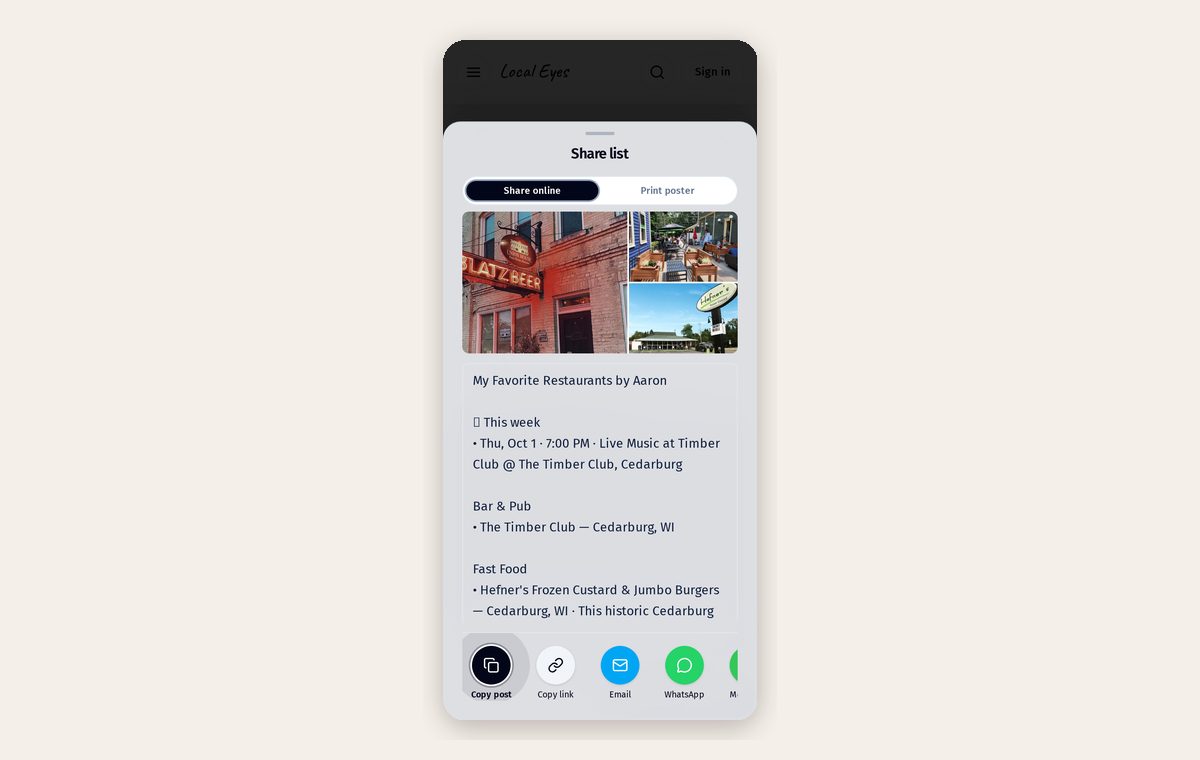
When a venue names the act, or a band names the venue, the event shows on both pages and both audiences see it.
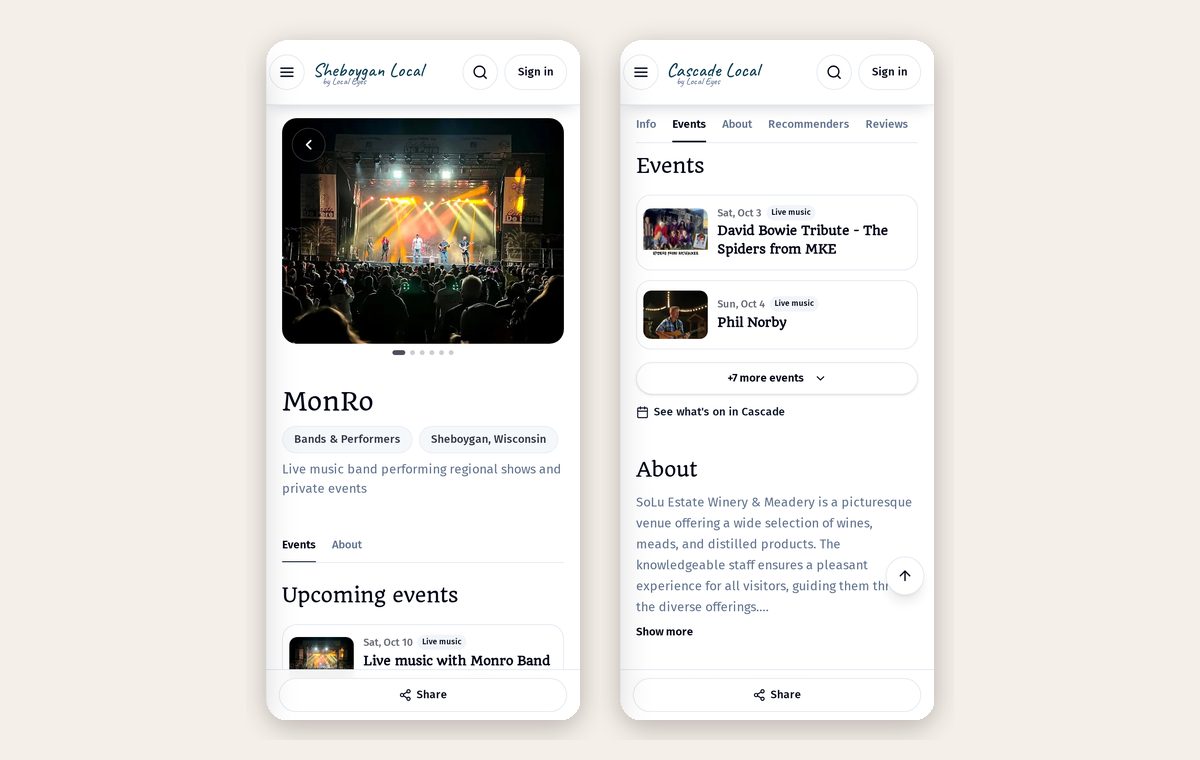
- 1Name the actFans of the band see the show too.
- 2Added by someone else?Your Events tab lists events others added you to, labeled "Added by".
- 3Not yours?Use "Remove me from this event" to unlink yourself.
Part 4
Use the tools you already have
Part 4
Use the tools you already have
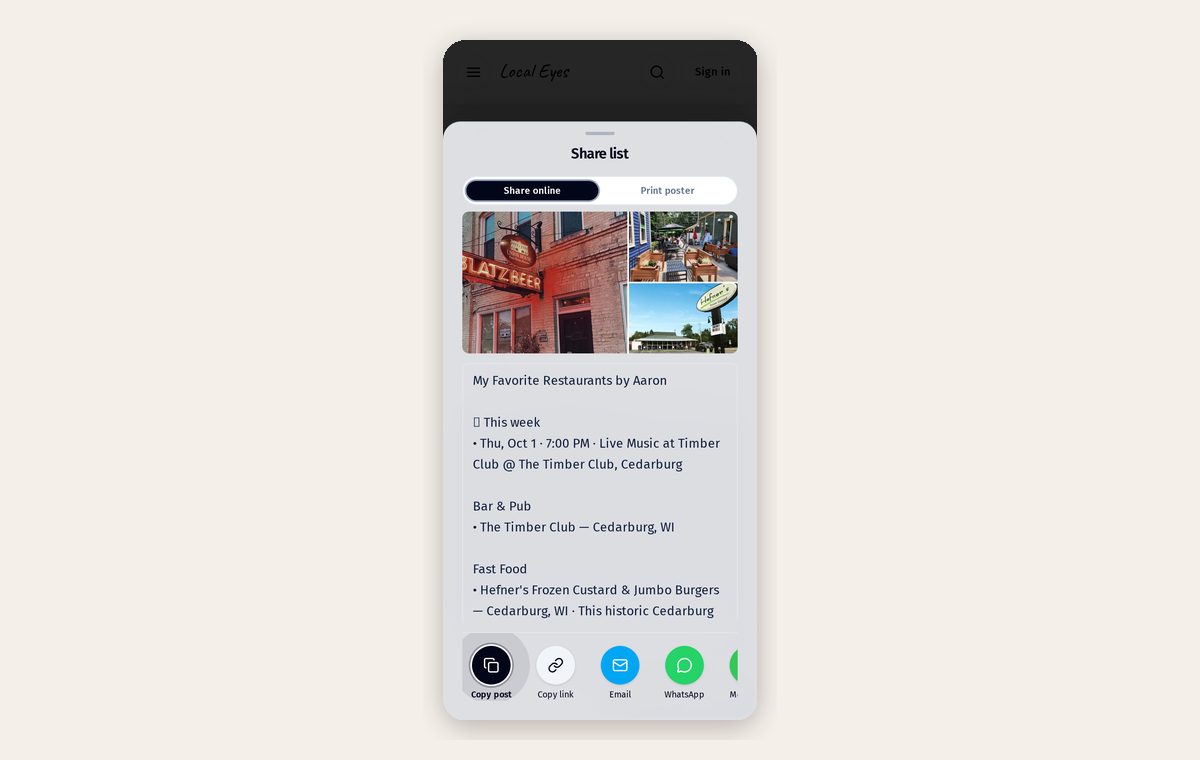
Local Eyes doesn't sell tickets — you keep the money and the relationship. Add a ticket link to any event.
- 1Ticketing sitesEventbrite, Ticket Tailor or Humanitix links work as-is.
- 2Simple payment linksStripe Payment Links, PayPal, Square or SumUp for cover charges and pre-sales.
- 3Free eventsLeave it empty, or link to an RSVP form.
Part 5
How many events you can run
Part 5
How many events you can run
Your Events tab shows how many live events you're using against your membership allowance. A recurring schedule counts as one event, not one per date.
- 1Free listingsA small allowance so every claimed place can share what's on.
- 2MembersHigher allowances and priority placement in town feeds and interest pages. See Membership tiers and benefits.
- 3Ended eventsPast events drop off automatically and free up your allowance.
Part 6
Make each event work harder
Part 6
Make each event work harder
A few small details make the difference between an event people scroll past and one they save.
- 1Add a real photoA wide photo of the act, the room or last year's crowd beats a text-only poster.
- 2Say who it's forFamily-friendly, 21+, free entry, dog-friendly — one line answers most questions.
- 3Print a posterFrom the Events tab, print posters and table tents with a QR code that opens the event.
- 4Share the linkEvery event has its own page; share it on social media and in your newsletter.
Part 7
Editing, pausing and removing
Part 7
Editing, pausing and removing
Change times, photos or details any time and the update appears everywhere at once. Skip a single date of a recurring schedule without deleting the series, or delete an event to remove it from every page.