Recommendation lists
Build a recommendation list in minutes
Share the places you trust behind one link, with your notes, a map and live events, and see the visits your recommendations send. For locals, fans, hosts, agents and businesses.
Why bother
Share places you trust, see what it does
Why bother
Share places you trust, see what it does
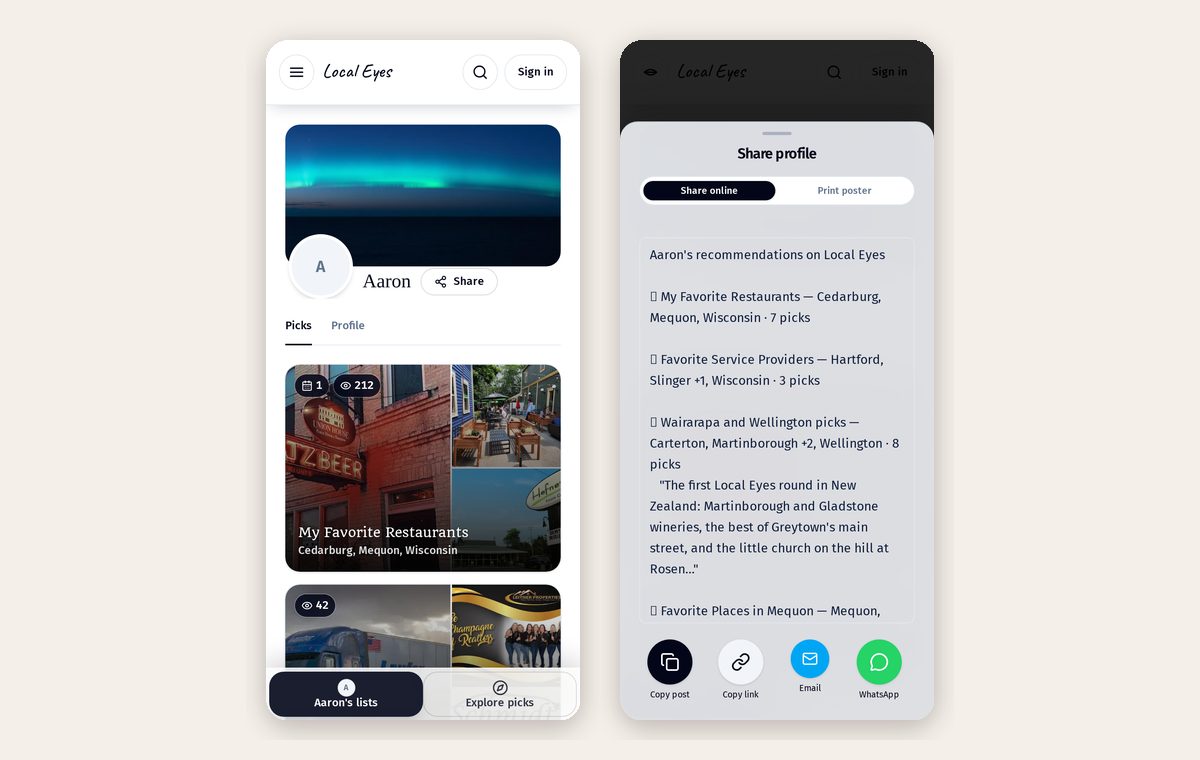
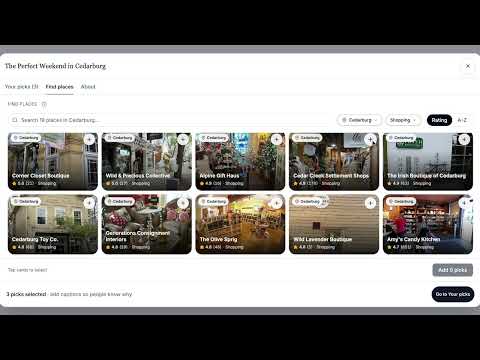
A recommendation list is your own mini-guide: the places you would tell a friend about, behind one link that stays up to date. People who open it get photos, ratings, your notes and a map. And it is not a one-way street: your Favorites tab has a Visits you sent view that shows the visits your lists send to those places, so you can see your recommendations actually working.
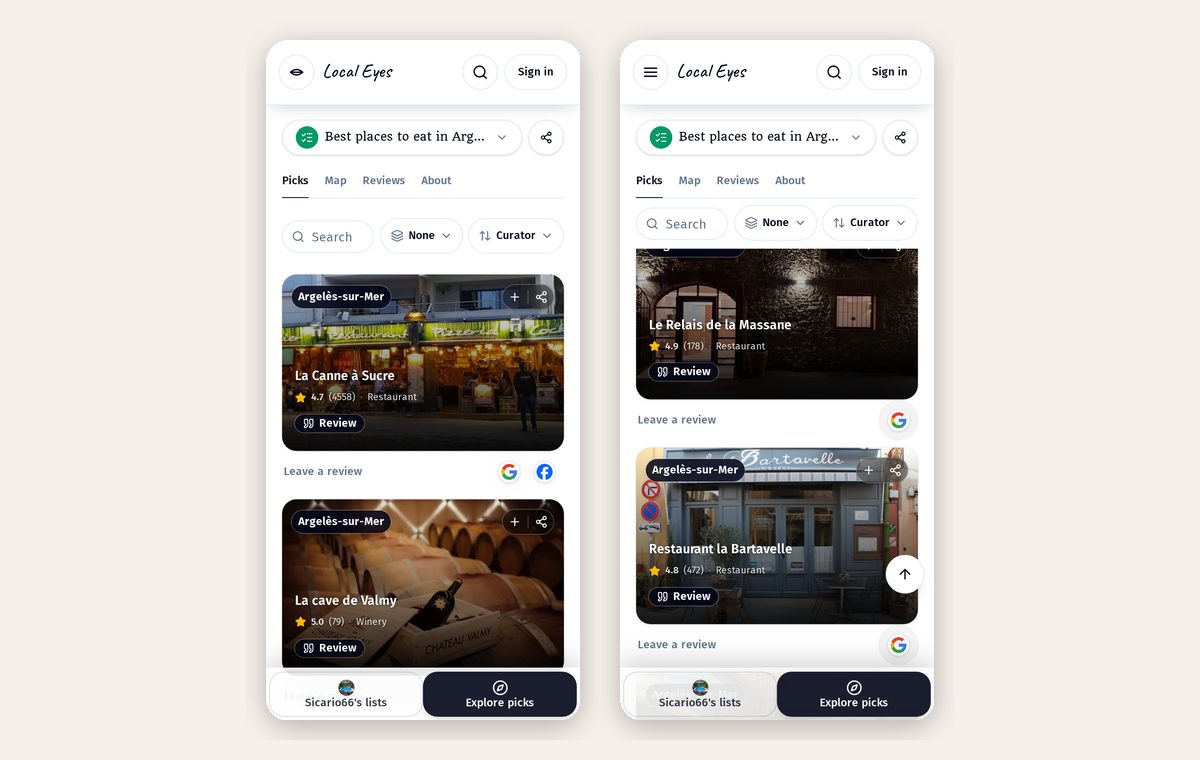
- 1One link, always currentShare it once. Every update, event and promotion appears on the same link.
- 2Your notes travel with itOne line per place: what to order, when to go. That is the recommendation.
- 3See the visits you sendFavorites → Visits you sent shows the views and clicks your lists drive to each place. Open a place to see which list brought people in.
Step 1
Start a list
Step 1
Start a list
Two ways in, same result. In Account → Favorites → recommendation lists, tap Add. Or tap + on any place card to open Save to a recommendation list, where you can pick an existing list or tap New list.
- 1Name itFrom Account, New recommendation list asks for a name and an optional description. Create opens Find places.
- 2Or start from a placeFrom a place card, enter a list name and tap Create & save to include that place immediately.
Step 2
Find places
Step 2
Find places
The studio opens on Find places. Three ways to fill the list; tap a place card to add it and it moves to Your picks.
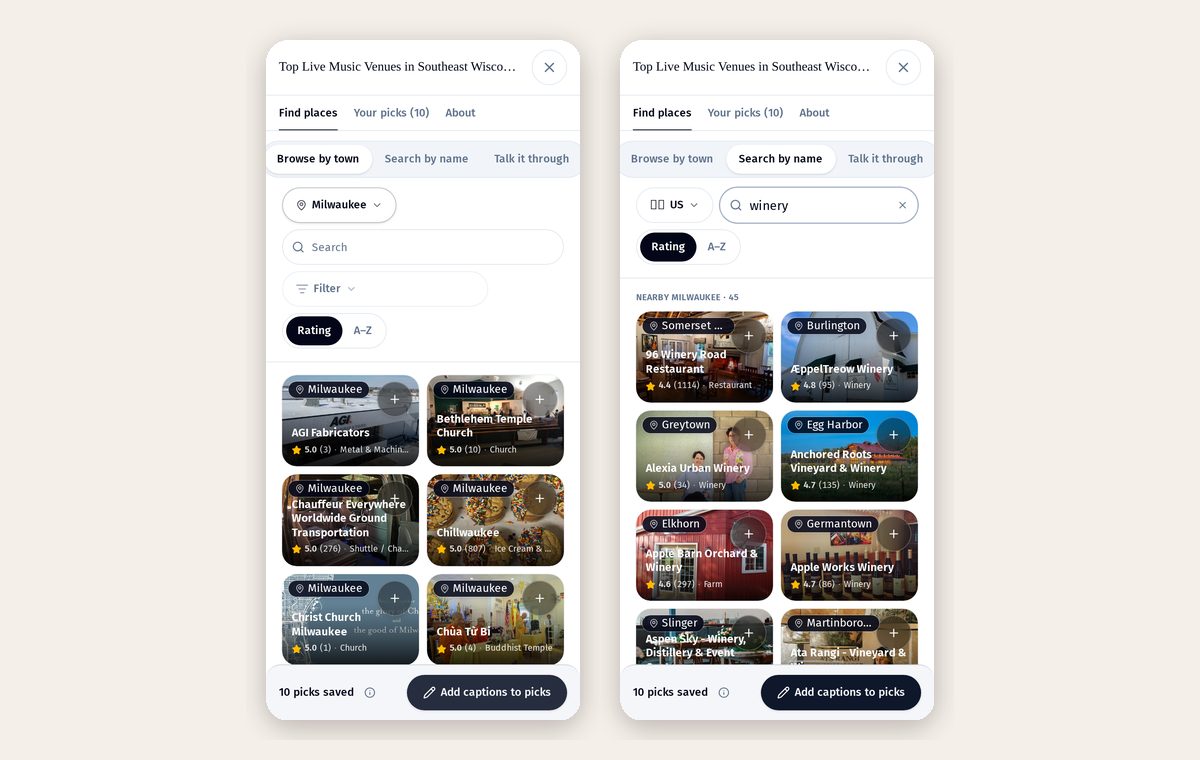
- 1Browse by townEvery place in your town, photo cards first. Tap + to add.
- 2Search by nameAny place, anywhere. If it is not on Local Eyes yet, the wider search adds it for everyone.
- 3Talk it throughSay what the list is for. Suggestions appear as cards; nothing is added until you tap one.
Step 3
Make it personal
Step 3
Make it personal
Open Your picks. Tap Add why you love this beneath a place, reorder with the grip, or remove one with X. In About, change the name or description. Everything saves as you go; there is no save button.
- 1Add your why"Ask for the terrace table." "Go before 9." Write the way you would text a friend.
- 2Keep it shortA breakfast spot, a dinner, a bar, something outdoors, a rainy-day plan. A short, personal list beats a long one.
- 3Let it sort itselfFood, activities and shops group by type automatically.
Step 4
See the finished result
Step 4
See the finished result
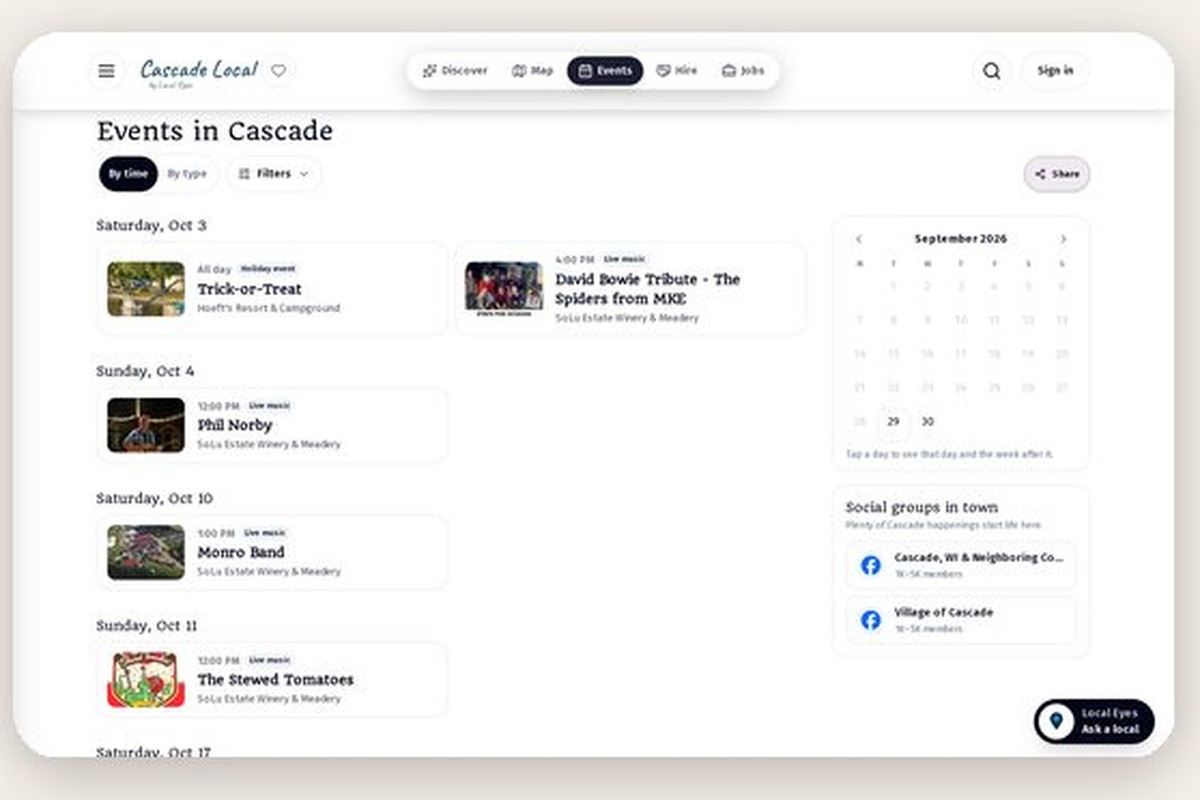
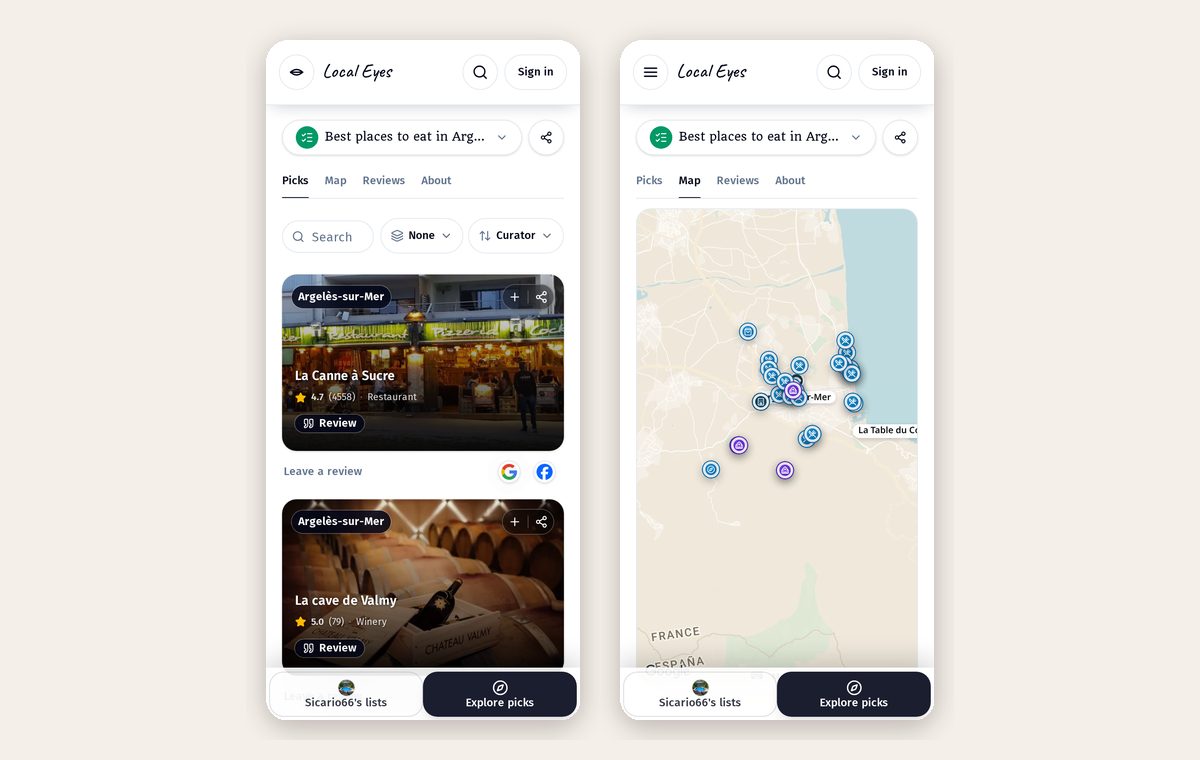
Tap Complete to see the list card and the choices to Share it online, Print a card, or View live list. The live page shows the places and a map, and visitors can filter events by today, 7 or 30 days. Ended events drop off on their own.
Step 5
Share it, then watch it work
Step 5
Share it, then watch it work
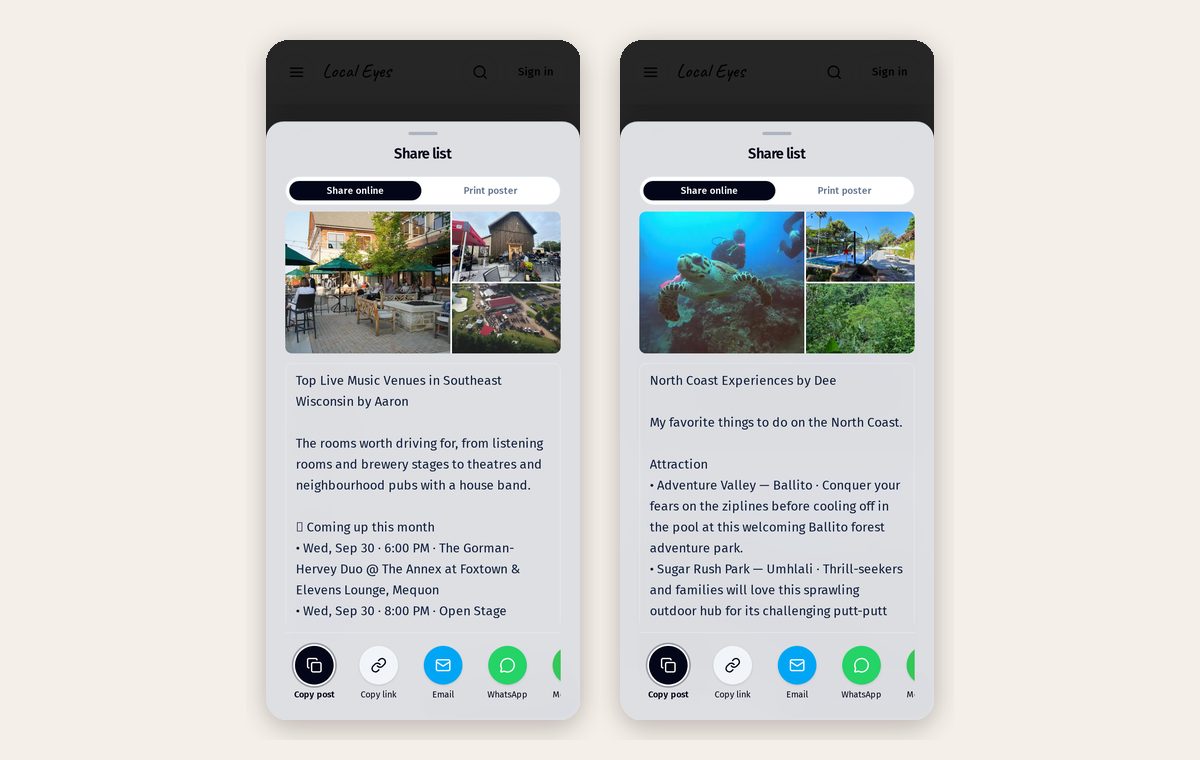
The Share button writes the post for you: title, picks by type and a line on each. Switch to Print poster for a flyer or table tent with a code. The link never changes, so update the list each season and everyone sees the new version. Then check Favorites → Visits you sent to see the visits your list sends to each place.
Visits you sent shows attributed views and clicks from your lists, not every inquiry or sale a place receives. My reach is separate: it shows results for listings you own.
Part 7
All your lists together
Part 7
All your lists together
Every list lives on your profile page, with view counts. Share the profile once and people can browse everything you recommend. Come back any time: find the list under Account → Favorites → recommendation lists and use Edit to change picks or wording, then share the same link again.